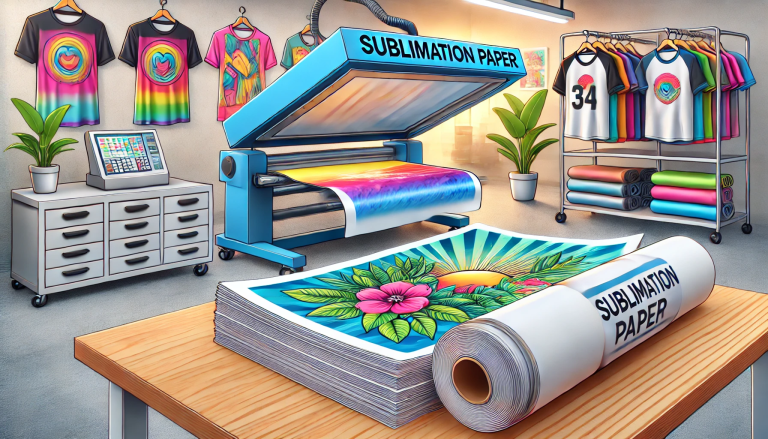
“Unlock the Possibilities with Quaff A1 Sublimation Transfer Paper!” – SUBLIMATIONTRANSFERPAPER –Instant Dry Inkjet Sublimation Paper Supplier, Sticky Sublimation Heat Paper Manufacturer, Made in China
Quaff A1 Sublimation Transfer Paper is a professional-grade medium designed for large-format sublimation printing, ideal for creating vibrant, durable designs on polyester or polymer-coated substrates like banners, posters, apparel, and hard goods. Its A1 size (23.4 x 33.1 inches / 594 x 841 mm) makes it perfect for high-volume or oversized projects, while its advanced coating ensures fast ink absorption, crisp transfers, and long-lasting results. Whether you’re a small business owner, crafter, or printing professional, mastering the use of Quaff A1 Sublimation Transfer Paper requires following key steps—from prepping your design to post-press care. This comprehensive guide walks you through the entire process, ensuring consistent, professional outcomes every time.
What You’ll Need Before You Start
Before using Quaff A1 Sublimation Transfer Paper, gather the essential tools and materials to avoid delays or mistakes. Ensuring compatibility between components is critical for successful sublimation:
Core Materials
- Quaff A1 Sublimation Transfer Paper: Verify the paper is unopened, stored in a cool, dry place (away from moisture and direct sunlight) to preserve its coating.
- Sublimation Ink: Use high-quality sublimation ink (e.g., Epson-compatible, Sawgrass, or Quaff’s recommended ink) formulated for sublimation printers. Regular inkjet/laser ink will not work—sublimation ink contains dyes that convert to gas under heat.
- Sublimation-Compatible Printer: A wide-format printer capable of handling A1 paper (e.g., Epson SureColor F570, Ricoh SG 3110DNw converted for sublimation, or Mutoh ValueJet). Ensure the printer is calibrated and free of clogs.
- Polyester/Polymer-Coated Substrate: Choose a substrate with at least 50% polyester content (100% polyester is best for maximum vibrancy) or a polymer coating (e.g., polyester fabric, coated canvas, aluminum sheets, ceramic tiles, or polymer-coated wood). Avoid non-polyester substrates like 100% cotton—sublimation ink cannot penetrate them.
Tools
- Heat Press: A large-format heat press (minimum 24 x 36 inches) capable of reaching 350–400°F (175–205°C) and applying even pressure (40–60 psi). For curved substrates (e.g., large mugs), use a convection oven or specialized heat press.
- Heat-Resistant Tape: High-temperature tape (e.g., 3M Heat-Resistant Tape) to secure the paper to the substrate—prevents shifting during pressing.
- Lint Roller/Cloth: To remove dust, lint, or moisture from the substrate (moisture causes blurring or discoloration).
- Scissors/Utility Knife: To trim the Quaff A1 paper if your design is smaller than the full sheet.
- Design Software: Graphic design tools like Adobe Photoshop, Illustrator, Canva Pro, or CorelDRAW to create/prepare your design.
- Thermometer (Optional): To verify the heat press temperature (ensures accuracy).
Step 1: Prepare Your Design
Proper design preparation ensures your print aligns with the substrate and transfers correctly. Sublimation prints are reverse (mirror) images—this step is non-negotiable:
- Set the Correct Dimensions: Open your design software and create a new project with dimensions matching your substrate (or the area you want to print). For full A1 prints, set the canvas to 23.4 x 33.1 inches (ensure resolution is 300 DPI for sharp details).
- Mirror the Design: Since sublimation paper transfers the reverse image, flip your design horizontally. In Photoshop, go to Edit > Transform > Flip Horizontal; in Canva, use the “Flip” tool under “Effects.”
- Optimize Colors: Sublimation ink produces vibrant results, but calibrate your design’s colors to match your substrate. Use RGB color mode (sublimation printers perform best with RGB) and avoid overly dark or muted tones—they may appear dull after transfer.
- Remove Unnecessary Elements: Crop the design to eliminate extra white space (this reduces paper waste and prevents “ghosting” from unused ink). Save the file as a high-resolution format (PNG, JPG, or PDF) to avoid compression.
Step 2: Load Quaff A1 Sublimation Paper into the Printer
Quaff’s A1 paper is thicker than standard printer paper (typically 100–120 gsm), so proper loading prevents jams and ensures even printing:
- Check the Paper Orientation: Quaff A1 Sublimation Paper has a “print side” (coated side) and a “non-print side” (uncoated). The print side is slightly glossy or has a subtle texture—touch the paper gently: the coated side feels smoother than the non-print side.
- Adjust Printer Settings:
- Open your printer’s control panel and select “Paper Type” > “Sublimation Paper” or “Photo Paper” (if sublimation is not an option).
- Set the “Print Quality” to “High” or “Best” (avoids pixelation) and “Paper Size” to “A1” (23.4 x 33.1 inches).
- Adjust the ink density: For Quaff paper, use medium-high ink density (too much ink causes bleeding; too little results in faint prints). Consult your printer’s manual for recommended settings.
- Load the Paper: Open the printer’s wide-format tray, align the Quaff A1 paper with the tray guides (ensure the print side is facing up—check the printer’s icon for guidance), and push the tray firmly into place. Avoid overloading the tray (load 5–10 sheets max) to prevent jams.
Step 3: Print Your Design
Once the paper is loaded, print your design and allow it to dry completely—this step prevents smudging during heat pressing:
- Initiate Printing: Open your design file, select “Print,” and confirm the settings (paper size, quality, mirror image). Click “Print” and monitor the printer to ensure no jams occur.
- Dry the Print: Quaff A1 Sublimation Paper absorbs ink quickly, but allow the printed design to air-dry for 2–5 minutes (or use a fan for faster drying). Do not touch the printed area—moisture from your hands or un-dried ink will cause smudging.
- Inspect the Print: Check for uneven ink distribution, smudges, or missing details. If the print is blurry, clean the printer’s print heads; if ink bleeds, reduce the ink density and reprint.
Step 4: Prep the Substrate
A clean, dry substrate is essential for optimal ink penetration. Any moisture, lint, or wrinkles will ruin the transfer:
- Clean the Substrate: Wipe the substrate with a lint-free cloth dampened with isopropyl alcohol (for hard substrates) or a dry lint roller (for fabric). Remove dust, oil, or debris—these create barriers between the ink and substrate.
- Remove Moisture: For fabric substrates, pre-press them in the heat press for 10–15 seconds at 350°F (175°C) to evaporate moisture and wrinkles. For hard substrates, air-dry them completely (avoid using a hairdryer—excessive heat may damage the coating).
- Position the Substrate: Place the substrate on the heat press platen, ensuring it’s flat and centered. Use heat-resistant padding if the substrate is uneven (e.g., thick canvas) to ensure even pressure.
Step 5: Heat Press the Transfer
The heat press is the most critical tool—temperature, time, and pressure must be precise to activate sublimation:
- Set Heat Press Parameters: Quaff A1 Sublimation Paper works best with the following settings (adjust based on your substrate):
- Temperature: 375–395°F (190–200°C) (100% polyester fabric: 385°F/196°C; hard substrates: 375°F/190°C).
- Time: 45–90 seconds (fabric: 45–60 seconds; hard substrates: 60–90 seconds).
- Pressure: Medium-high (40–50 psi) – the paper should be firmly pressed against the substrate without slipping.
- Position the Paper: Place the printed Quaff A1 paper onto the substrate with the design side facing down (ensure the design is aligned correctly—use the heat-resistant tape to secure all edges, especially for large designs. This prevents “ghosting” (double images) caused by paper movement.
- Cover and Press: Place a Teflon sheet or parchment paper over the paper/substrate (protects the heat press and prevents ink from transferring to the platen). Close the heat press firmly and start the timer. Do not open the press during the cycle—interrupting heat/pressure ruins the transfer.
- Peel the Paper: After the timer ends, open the heat press and allow the substrate to cool for 10–15 seconds (for fabric) or 30 seconds (for hard substrates). Peel the Quaff paper slowly and carefully—peeling too quickly may cause the ink to smudge. If the design is incomplete, re-press for 10–15 seconds (do not re-use the same paper).
Step 6: Post-Press Care and Finishing
Proper post-press care ensures your sublimated design remains vibrant and durable:
- Fabric Substrates: Wash the fabric inside out in cold water with mild detergent (avoid bleach or fabric softener) after the first 24 hours. Tumble dry on low heat or air-dry—high heat may fade the design over time. Do not iron directly on the design (iron inside out if needed).
- Hard Substrates: Allow the substrate to cool completely (1–2 hours) before handling. Avoid scratching the surface or exposing it to extreme temperatures (e.g., direct sunlight, hot water) for extended periods.
- Storage: Store unused Quaff A1 Sublimation Paper in its original packaging, sealed tightly, in a cool (60–75°F), dry (relative humidity 40–60%) environment. Avoid stacking heavy objects on the paper—this damages the coating.
Troubleshooting Common Issues
Even with proper preparation, issues may arise. Here’s how to fix the most common problems when using Quaff A1 Sublimation Paper:
1. Blurry or Faded Design
- Cause: Insufficient heat/pressure, moisture on the substrate, or low ink density.
- Fix: Increase the heat press temperature by 10–15°F, adjust pressure to 50 psi, pre-press the substrate longer to remove moisture, and increase ink density in the printer settings.
2. Ink Bleeding or Smudging
- Cause: Too much ink density, un-dried print, or paper movement during pressing.
- Fix: Reduce ink density, allow the print to dry for 5+ minutes, and use more heat-resistant tape to secure the paper.
3. Ghosting (Double Image)
- Cause: Paper shifting during pressing or opening the heat press too early.
- Fix: Secure all edges of the paper with tape, avoid moving the press during the cycle, and wait for the substrate to cool slightly before peeling.
4. Design Not Transferring Fully
- Cause: Substrate has less than 50% polyester, expired sublimation ink, or clogged printer heads.
- Fix: Use a 100% polyester or polymer-coated substrate, replace old ink, and clean the printer heads (run a nozzle check and cleaning cycle).
5. Paper Jams in the Printer
- Cause: Overloading the tray, incorrect paper orientation, or dirty printer rollers.
- Fix: Load 5–10 sheets max, ensure the print side is up, and clean the rollers with a lint-free cloth dampened with water.
Pro Tips for Mastering Quaff A1 Sublimation Paper
- Test First: Print a small portion of your design on a scrap of Quaff A1 paper and transfer it to a test substrate before printing the full A1 sheet—saves paper and ink.
- Calibrate Your Printer: Use the printer’s color calibration tool to ensure your design’s colors match the final transfer. Quaff recommends printing a color chart to adjust settings.
- Avoid Touching the Coated Side: Oils from your hands damage the paper’s coating—handle the paper by the edges only.
- Use a Wide-Format Heat Press: For full A1 prints, a heat press with a platen larger than A1 (e.g., 36 x 48 inches) ensures even pressure across the entire sheet.
Conclusion
Using Quaff A1 Sublimation Transfer Paper effectively requires attention to detail—from choosing compatible materials to mastering heat press settings. By following this step-by-step guide, you’ll unlock the paper’s full potential: vibrant, high-resolution prints that bond permanently with polyester/polymer substrates. Whether you’re creating large banners, custom apparel, or promotional products, Quaff A1 Sublimation Transfer Paper delivers consistent, professional results for both small-batch and high-volume projects. Remember: sublimation is a system—each component (ink, printer, substrate, paper) works in harmony. Invest time in preparation, and you’ll avoid frustration and achieve stunning, long-lasting designs.